At a glance
Repeated attachments and documents for different projects need the right context and review point.
A document record with its source, assigned project, review status and next action.
I built the intake boundary, tracking rules, review states and follow-up controls.
Labelled Gmail intake, duplicate-safe local receipts and a separate Google records-and-drafts example.
The problem
A subcontractor sends documents for one job, then sends an attachment again while other project documents are arriving. The team needs to know which builder and project each document belongs to, what has already been received, and what still needs checking.
I designed the workflow to make those records easier to follow without treating receipt of a document as approval.
How the system works
I built a tracking core that brings the source document, recorded details, review status and follow-up together. Approved routing labels assign the builder and project; the workflow does not identify them from document contents.
The controlled intake used sample documents created for testing.
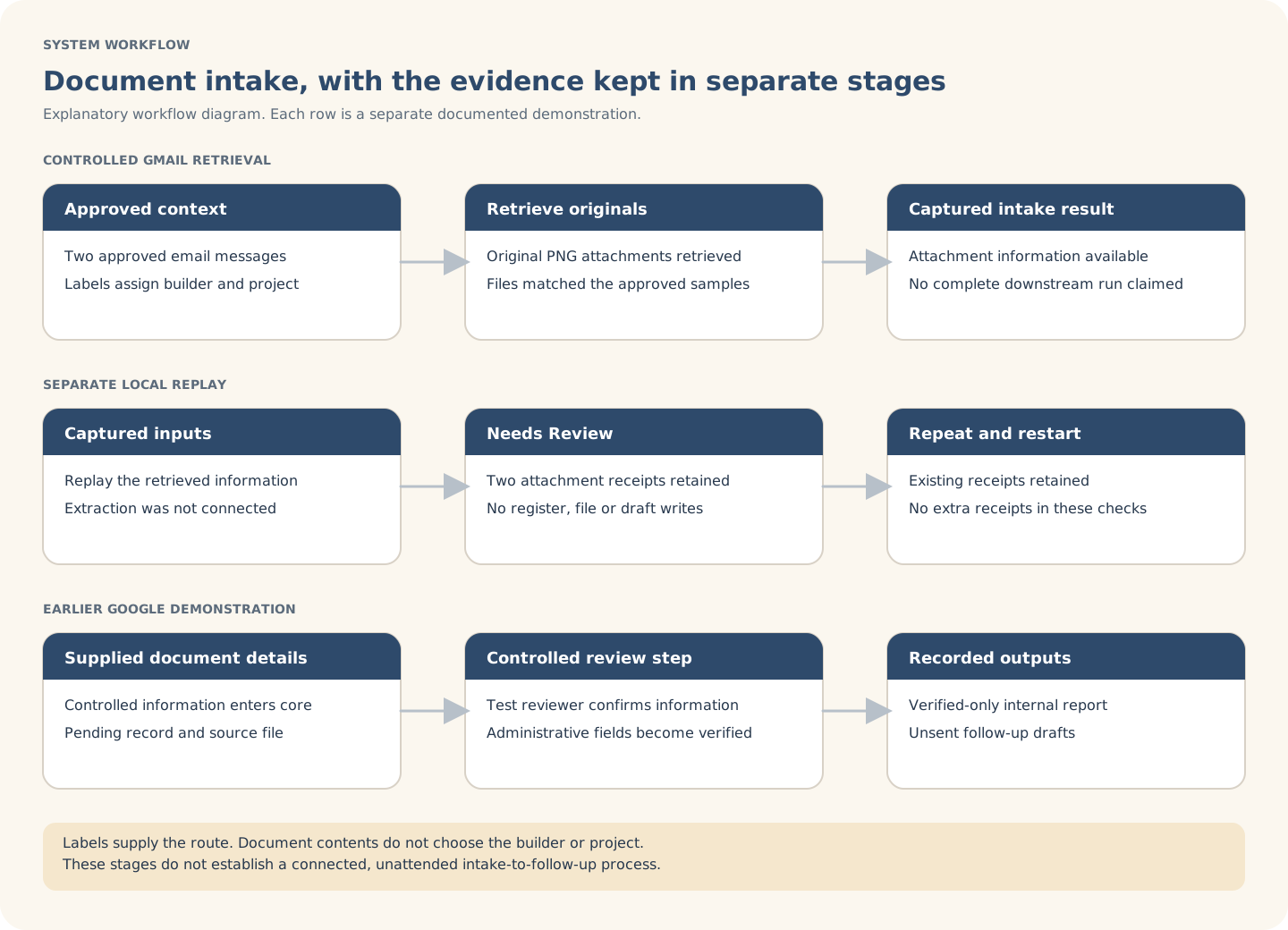
Illustrative workflow overview. This explains the separate intake and review boundaries; it is not an execution screenshot.
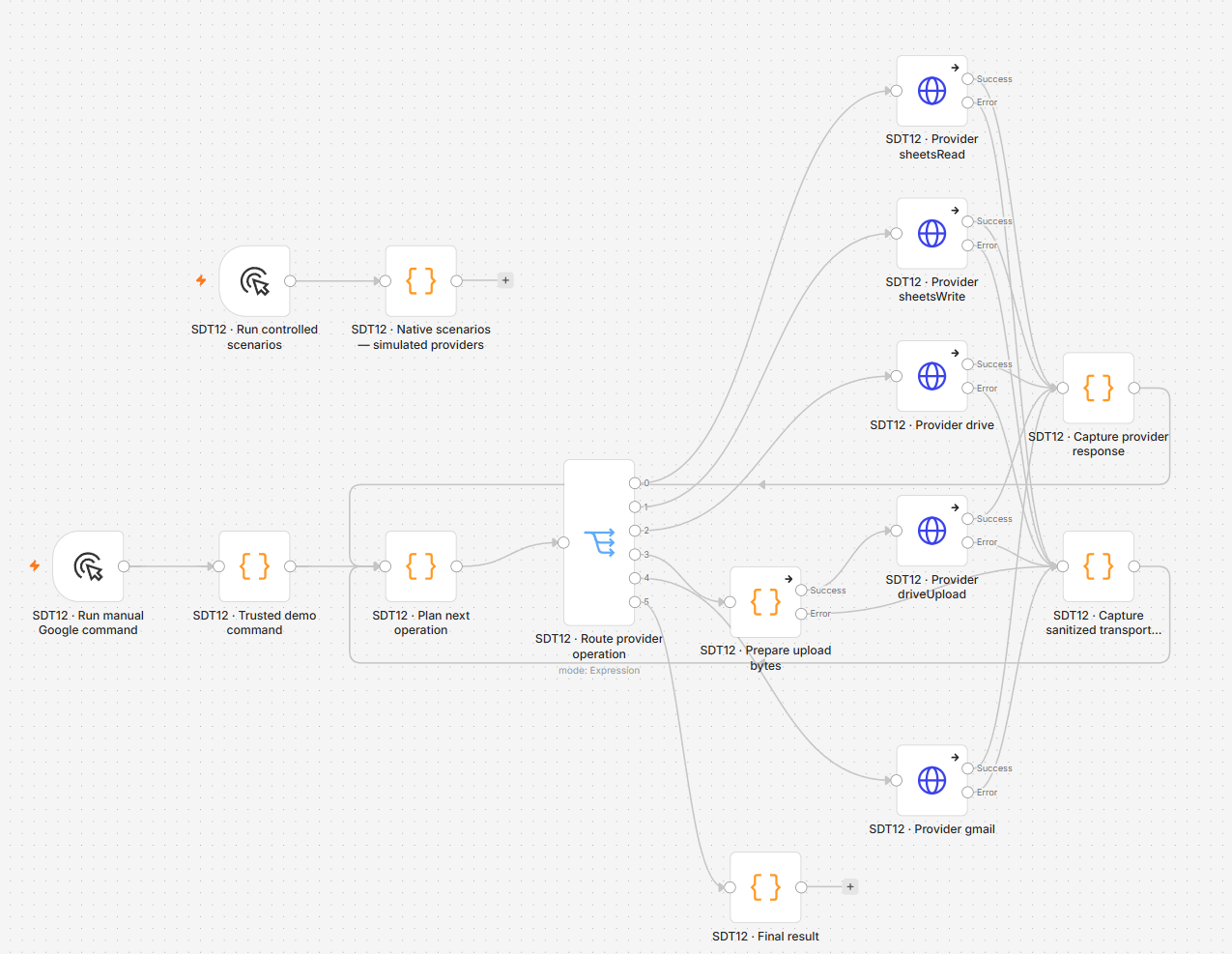
Workflow implementation shown in n8n.
What I demonstrated
I demonstrated labelled Gmail intake, local receipt tracking and Google record-and-draft handling in separate examples.
Controlled Gmail intake
I retrieved the original PNG attachments from two approved, labelled emails and confirmed they matched the supplied samples.
Separate local replay
The replay kept two attachment receipts in Needs Review. Repeating and restarting it did not add duplicate receipts. It made no register, file or draft writes.
Saved local result / excerpt
A receipt waiting for review
- Receipt 1 / recorded status
- Needs Review
- Receipt 2 / recorded status
- Needs Review
Exact status values. Receipt numbers are editorial labels.
This is a readable extract of the separate local replay, showing attachment receipts rather than downstream register entries. It is not an actual register screenshot.
Google records and draft example
In a separate demonstration, supplied document information and a controlled reviewer command produced real Google records and files, a verified-only internal report and two unsent Gmail drafts. Repeat checks did not duplicate those tested outputs.
My design decisions
I chose explicit routing because repeated attachments and similar names should not decide where a document belongs. I built the intake boundary, tracking rules, review states and follow-up controls.
Separate checks held or rejected conflicting routes and cross-builder changes.
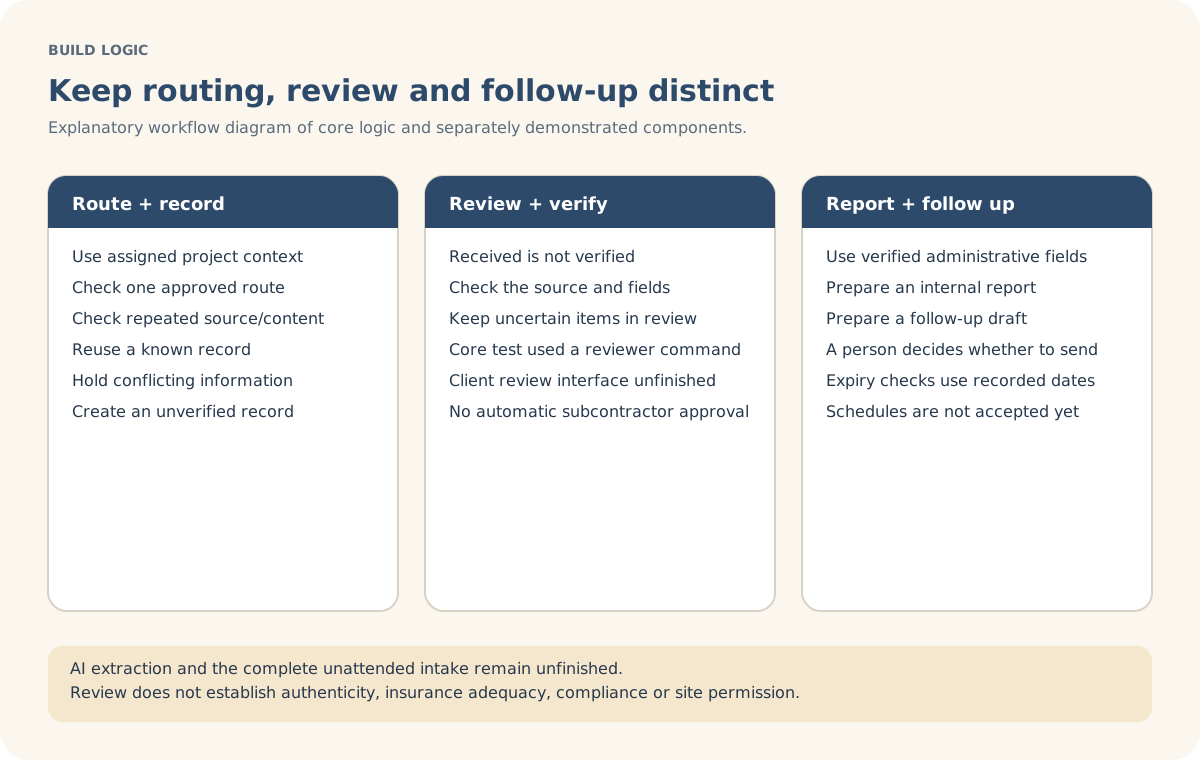
Explanatory build-detail visual of the tracking and review rules. It is not an execution screenshot.
What stays human-controlled
The responsible team checks document details, resolves uncertain information and approves follow-ups. The tracker does not determine authenticity, insurance adequacy, legal compliance, subcontractor approval or permission to work on site.